This document provides a basic overview of an Originators functions related to creating a posting within PeopleAdmin.
User Group: Originator
Purpose: Create a posting for approval
If you don’t have originator access, submit a request. You cannot create a posting without this access. To get Originator access, submit a ticket for an existing employee change or new employee setup. You may be required to login using your usual BCIT login credentials (faculty and staff).
Confirm the following information with the hiring manager prior to creating a posting:
Position Control Number (PCN)
Position Title
Department 1
Department 2
Org Code
Job Status
Employee Group
Full-time or Part-time
Is this position able to work remotely? Yes or No
Number of vacancies
Anticipated Start/End Dates
Competition Open/Close Dates
Salary Grade (BCGEU Support Staff positions only)
FTE
Reason for Hiring
If backfilling temporarily or permanently for a leave, promotion, retirement, or resignation you will need to confirm: the employee’s A0#, PCN, and FTE.
Selection Committee member names
If unknown at the time of creating the posting, contact us once confirmed. If the selection committee members are not added, they will not have access to review applications.
Log in to PeopleAdmin from Banner 9 NWIHIRE or id.bcit.ca
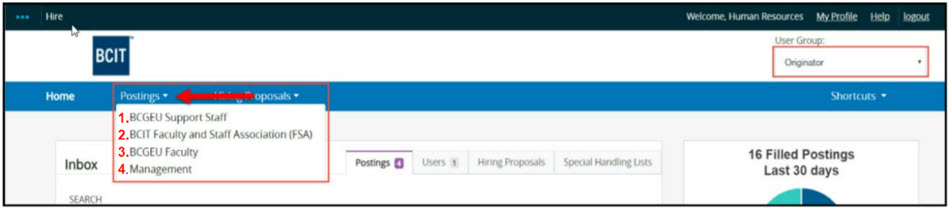
Choose Originator from the User Group drop-down menu, found in the top-right corner of the page.
Choose the appropriate employee group for the posting you are creating from the Postings drop down menu. There are 4 employee groups to choose from. If you are unsure of the employee group, please contact us to confirm.
Click the orange Create New Posting button.
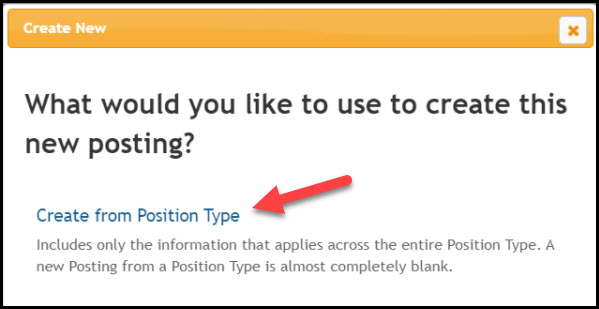
A dialogue box will appear. Click on Create from Position Type.
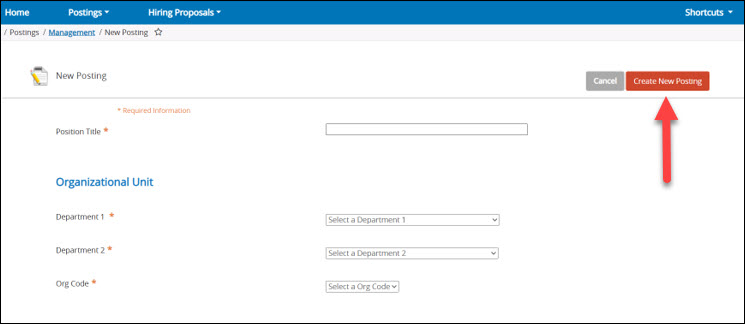
Complete the New Posting fields as indicated and click the orange Create New Posting button. Note: Department 1, Department 2, and Org codes will only list orgs you have access to. Request additional access.
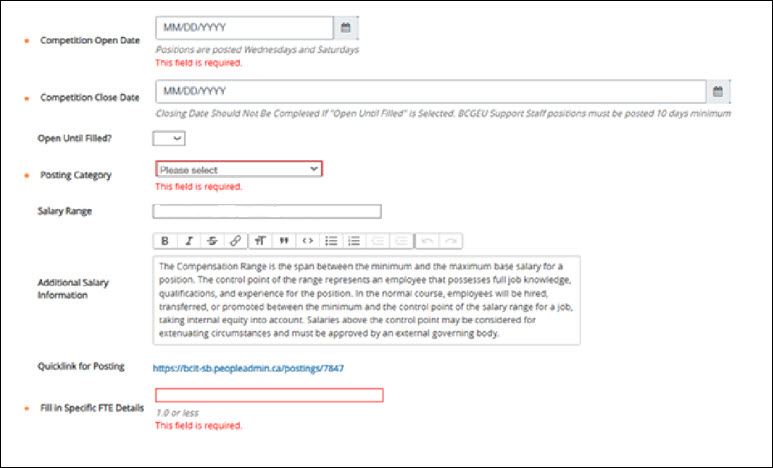
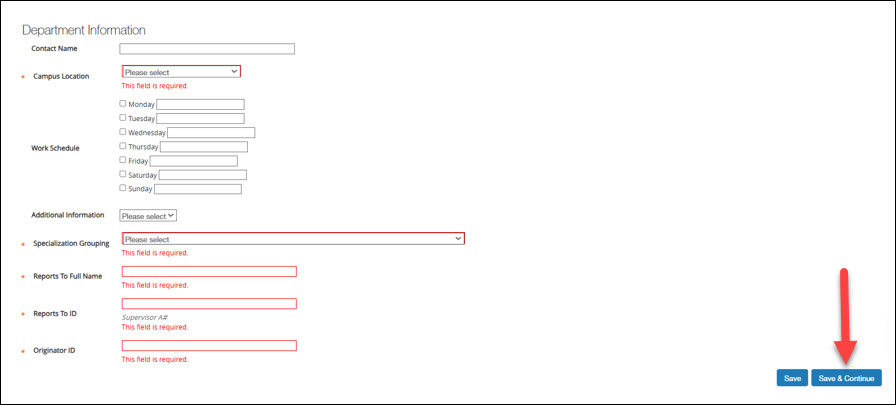
Complete the required fields as indicated by the * and red highlights and the additional boxes available.
Please note that competitions are posted on Wednesdays and Saturdays only. Competition close date will depend on the hiring manager’s preference and applicable collective agreement requirements.
BCGEU Support Staff – 10 days
BCGEU Faculty – 14 days
Faculty and Staff Association – 5 days
Management – no minimum requirement
Press the blue Add Reason for Hiring Entry button to enter reason for hire and backfill details.
Reason for Hiring: consult with hiring manager (examples: Additional Workload, Replacement for Resignation/Promotion) Backfill ID: if the posting is the result of a backfill due to a promotion, termination, or leave – input the employee’s A0# that is being backfilled. Same with backfill PCN – you will need this from the employee being backfilled. If it is a permanent position – this will be the same as what you entered earlier. Backfill FTE – should be the same as what you entered in the Specific FTE Details box above.If hiring for multiple vacancies in one posting – you can do so if all the positions are under the same org code and have the same status (reg FT, reg PT, temp FT, temp PT). If adding multiple vacancies, hit the blue button again and repeat the steps above. If you have multiple vacancies with different PCNs, enter ONE of the PCNs in the PCN box at the top, and ensure all PCNs are entered in the reasons for hiring.
Complete information and press Save & Continue.
Add Search Committee Members by clicking Add Existing User button. The originator will only have access to add members at this step. Once the posting is moved to the approver, the originator no longer has access to edit the posting. If unknown at the time of creating the posting, please contact us once confirmed. If the selection committee members are not added, they will not have access to review applications.
Use the Search box to find specific employees and click Add Member to add them to the Search Committee. If you are unable to find the selection committee member you wish to add, please contact us to request selection committee member access for that employee.
Once all Selection Committee members have been added Close the employee list or click the X in the top right corner and press Next.The hiring manager for the competition is the Committee Chair. Check the Committee Chair button to identify the hiring manager as the committee chair.
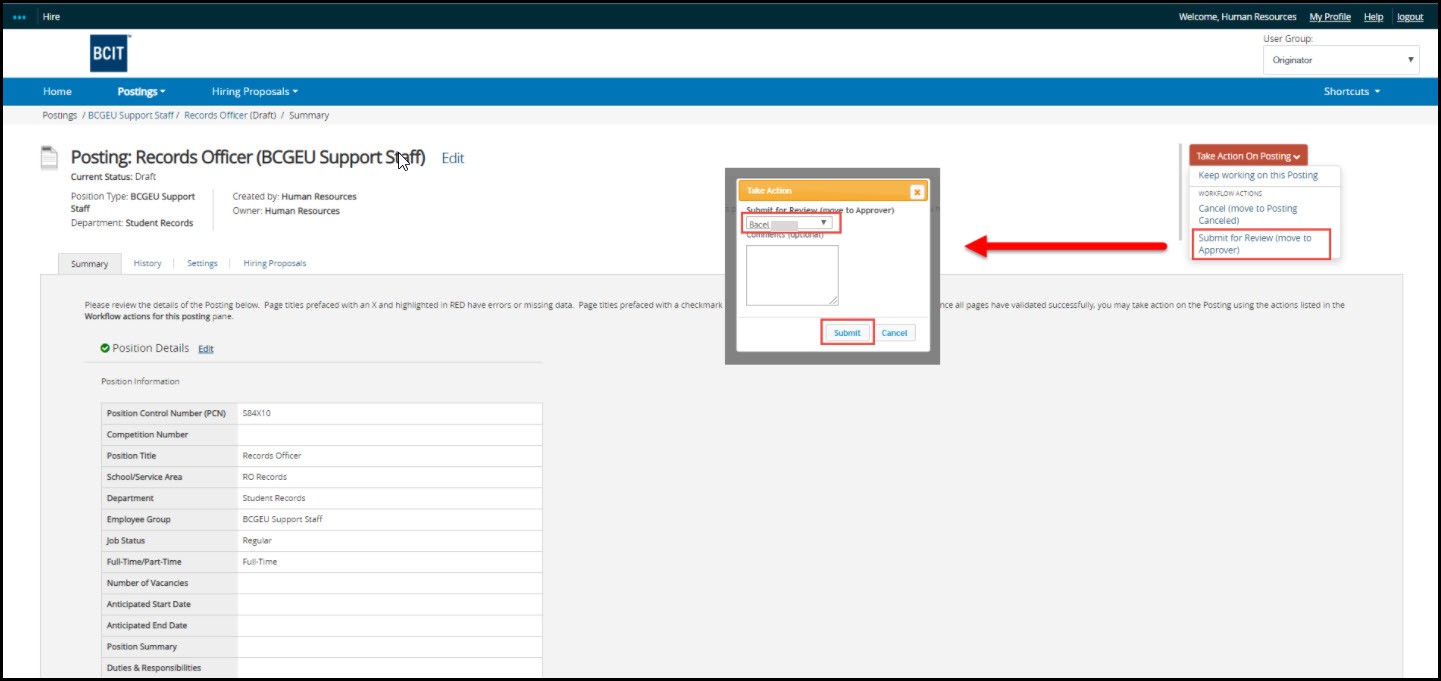
Review details and send for Approval by clicking the orange Take Action on Posting button. NOTE: If any errors exist, they will be indicated at the top of the screen in red.
Choose Approver using drop down, include comment (optional) and press Submit. In most cases, the level 1 approver will be the hiring manager. If the Approver does not appear in the list, send it to another manager within the department, as appropriate. For future postings, submit an ITS request for the manager to be added as a level 1 approver.
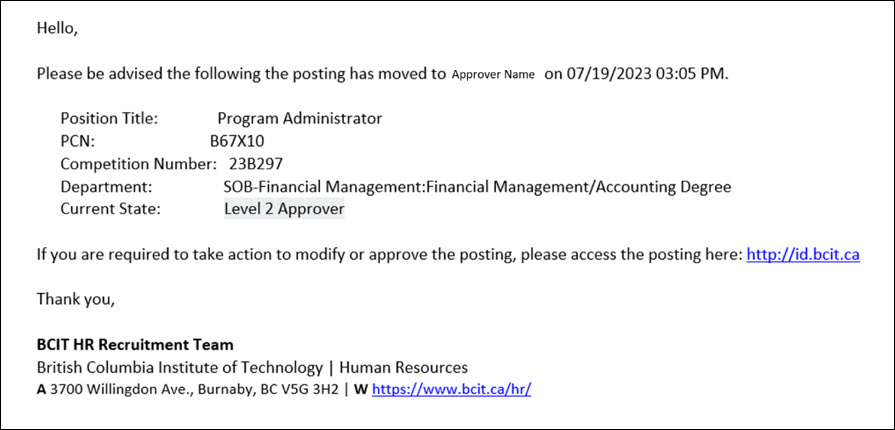
An email will now be sent to the Approver indicating they have an action required. Any comments you included will show up in the email under the Previous User Comments. If an Approver is experiencing issues with approving the posting in PeopleAdmin, please contact us for assistance.
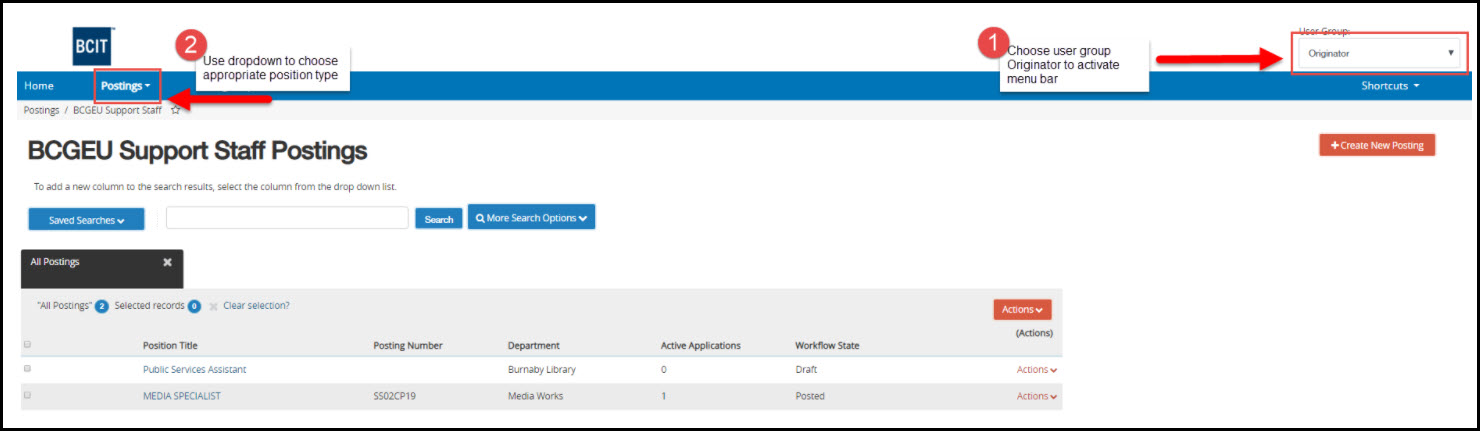
Choose Originator from the User Group drop-down menu, found in the top-right corner of the page.
Choose the appropriate employee group from the Postings drop down menu.
Review postings listed or use Search box to refine your list.
Workflow State
Workflow State Owner
Draft
Originator has started to create a posting and has not yet sent it for approval
Originator
Posting was returned to the Originator from an Approver or HR, for updates and/or additional details
Approver
Posting has been sent to Approver for review
Level 2 Approver
Posting has been sent to Level 2 Approver for review (postings greater than 6 months)
HR
Human Resources is updating the posting with additional details prior to approving and scheduling to post on Careers at BCIT
Approved-Pending
Posting has been approved and is pending to be posted on Careers at BCIT on the indicated posting start date (BCIT posting days are Wednesday and Saturday)
Posted
Posting is live on Careers at BCIT
Closed/Removed from Web
Posting has closed and is no longer visible on Careers at BCIT
Filled
Posting has been Filled
Posting Canceled
Posting has been cancelled and is no longer active